App Center
The App Center lets you add new functions to your SOLIO, for example for a charging station, a dynamic electricity tariff or an additional inverter. Here you can see what is already installed and redeem licence keys for new apps.
At a glance
- You will find the App Center in the menu under Your Energy Journey → AppCenter.
- The App Center is available to you as an owner. It is not visible with a guest account.
- Many apps need a licence key. You receive it when you order the app.
- Your installer sets up most apps during commissioning. After that, you can view and adjust apps at any time.
- New apps only appear once your SOLIO is up to date.
Opening the App Center
Expand Your Energy Journey in the menu on the left. On a smartphone you will find it in the bar at the bottom of the screen.
Click AppCenter. The overview of all apps on your system opens.
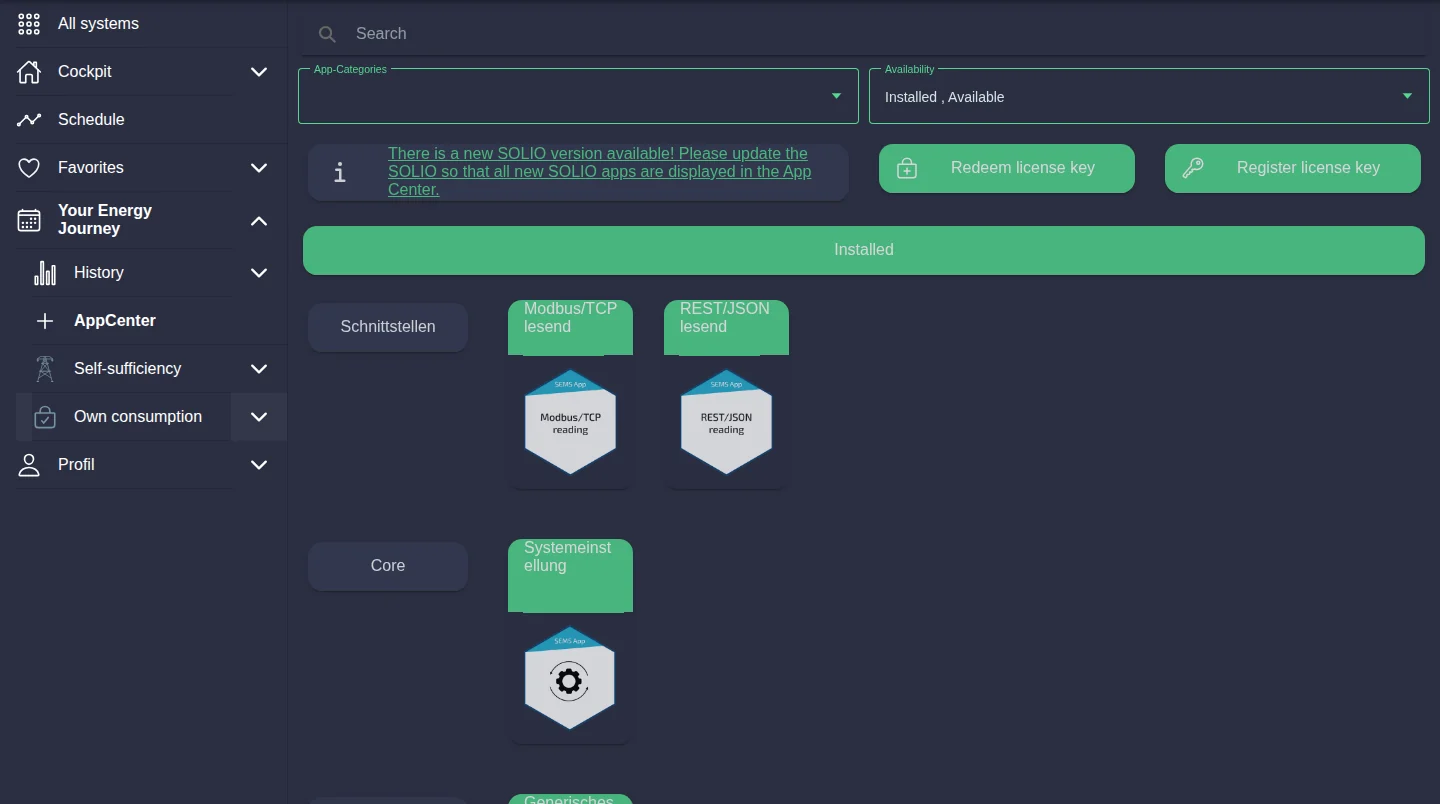
How the App Center is organised
| Area | What you will find there |
|---|---|
| Search field | Search for an app by name. |
| App categories | Shows only apps of a certain kind, for example Interfaces. |
| Availability | Choose whether you see Installed, Available or both. |
| Notice about a new version | Appears when an update is available for your SOLIO. One click takes you straight to the system update. Only after the update will you see all new apps. |
| Redeem license key and Register license key | Enter licence keys for new apps here, see below. |
| Installed | All apps already running on your SOLIO, sorted by category. |
| Available | Apps you can install in addition. |
Some apps are shown faded and marked Not available. These apps do not currently suit your system. Click the notice to see the reason.
If you see the notice about a new SOLIO version, it is best to run the update first. How to do this is described under Settings → SOLIO System.
Redeeming or registering a licence key
Apps that are not free need a licence key. It consists of 16 characters in four groups of four, for example XXXX-XXXX-XXXX-XXXX. You have two options:
You install the app straight away. This is the usual way.
You only store the key for your system and install the app later, for example because the device is not connected yet.
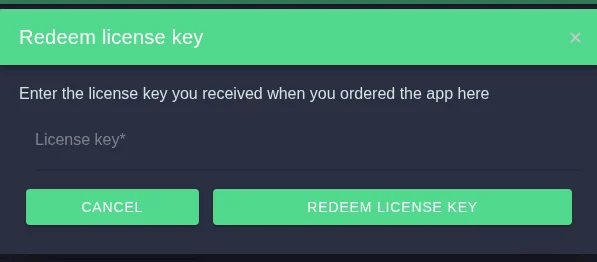
Redeeming a licence key
In the App Center, click Redeem license key.
Enter your licence key in the License key field. The hyphens are added automatically.
Click Validate license key. If everything is correct, License key is valid appears.
Click Redeem license key. The App Center now shows the apps you can install with this key. Select the right app and follow the steps under Installing an app.
A small “l” and a capital “I”, or the digit “0” and a capital “O”, are easily mixed up. It is best to copy the key from your delivery note or e-mail and paste it in.
Using a registered key later
If you have registered a key, a small number on the Redeem license key button shows how many registered keys have not been used yet. To redeem one, open the dialogue, tick Redeem an already registered license key?, choose the key from the list and click Redeem license key.
Installing an app
Click the app you want. If you have just redeemed a licence key, you only see the apps that match this key.
The app page shows a description of the app, where available. Click Install app. If a licence key is still missing, the App Center asks for it now.
Give the app a name and fill in the other fields. Fields marked with an asterisk (*) are required. Your installer knows technical details such as the network address of a device.
Click Install app at the bottom. After the message App successfully installed, the app appears under Installed.
Incorrect details, such as a wrong device address, mean the app will not work properly. If in doubt, let your installer do the setup.
Changing or removing an app
Under Installed, click the app and then Edit app. You will see the same fields as during installation.
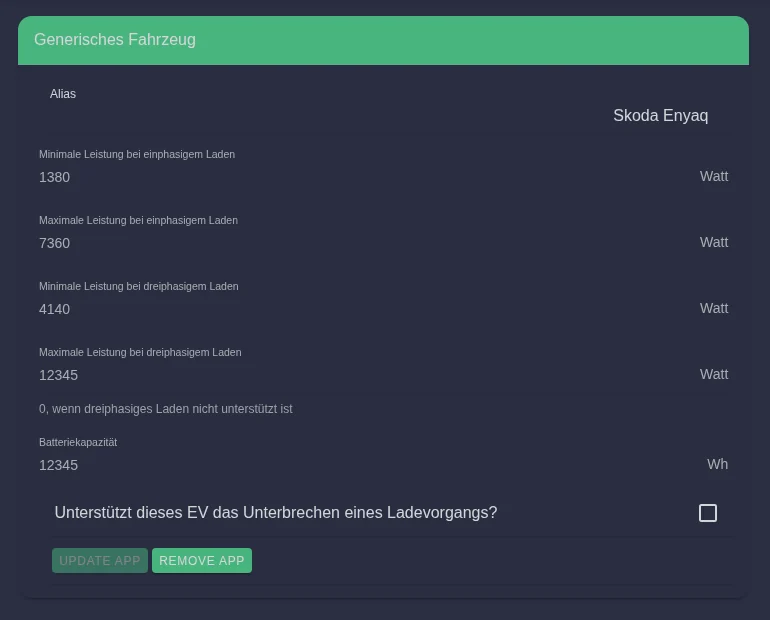
- Change: adjust the values and click Update app.
- Remove: click Remove app and confirm the security prompt. This deletes all settings that this app created.
Frequently asked questions
I cannot see the App Center in the menu. The App Center is intended for the owner role. It is not shown with a guest account. Your role is explained under Who can do what?
I cannot find the licence key buttons. You redeem licence keys in the portal or in the app. If you log in directly on the SOLIO in your home network, these buttons are missing.
The app I am looking for is missing. First check that Available is selected under Availability. If there is a notice about a new SOLIO version at the top, run the update. New apps will then appear as well.
The message “License key is invalid” appears. Check your entry for typing errors. It is best to copy the key directly from your documents.
The message “License key has already been registered on another system” appears. The key already belongs to another system. If you continue, the registration there will be removed. Only do this if you really want to move the app to this system.
Can I install an app more than once? For some apps, yes, for example for several inverters or meters. Other apps can only be installed once per system.