The cockpit
The cockpit is the start page of your SOLIO. It shows in real time where your electricity is coming from and where it is going, what the weather will be like and how your day has gone so far.
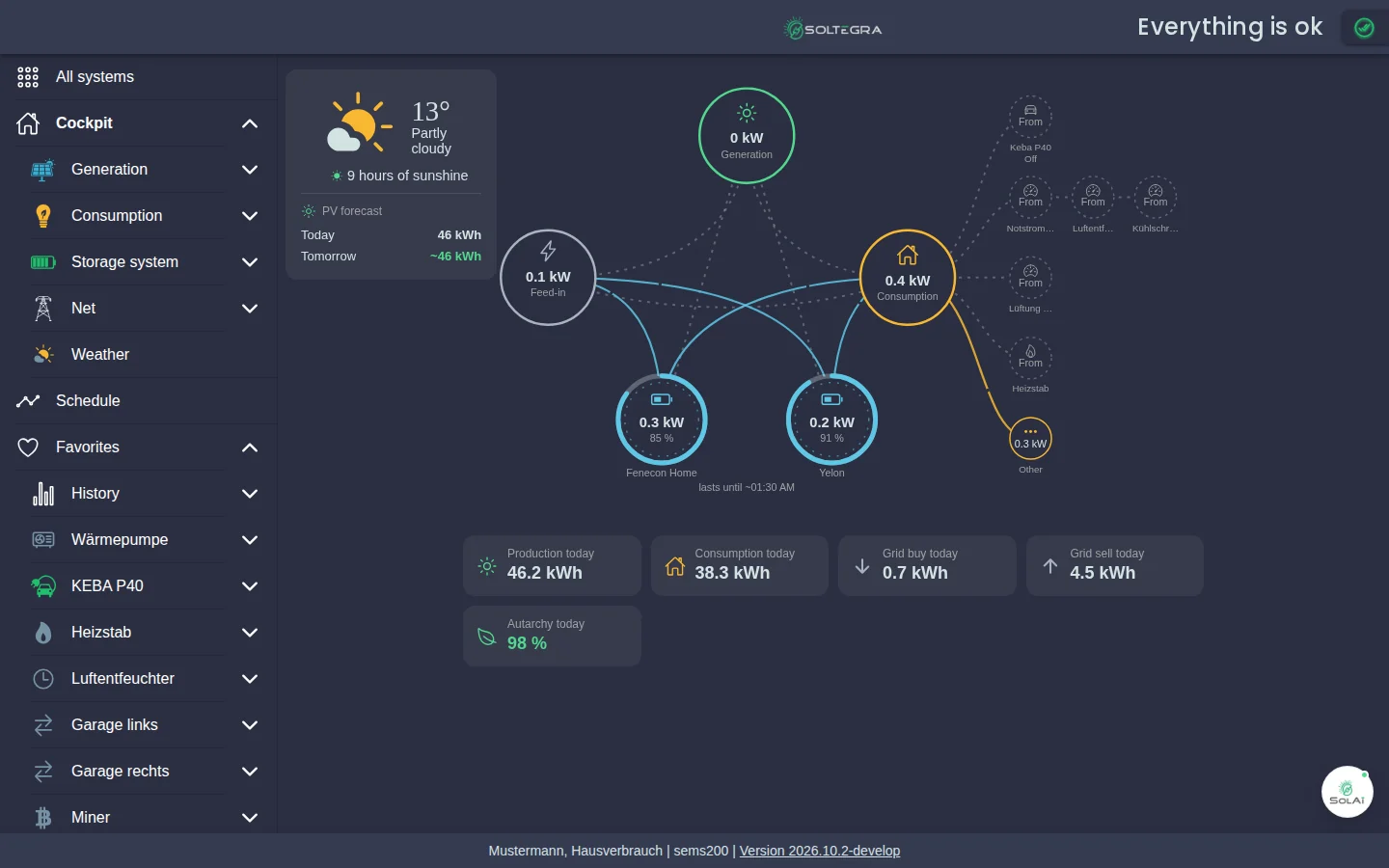
The energy flow
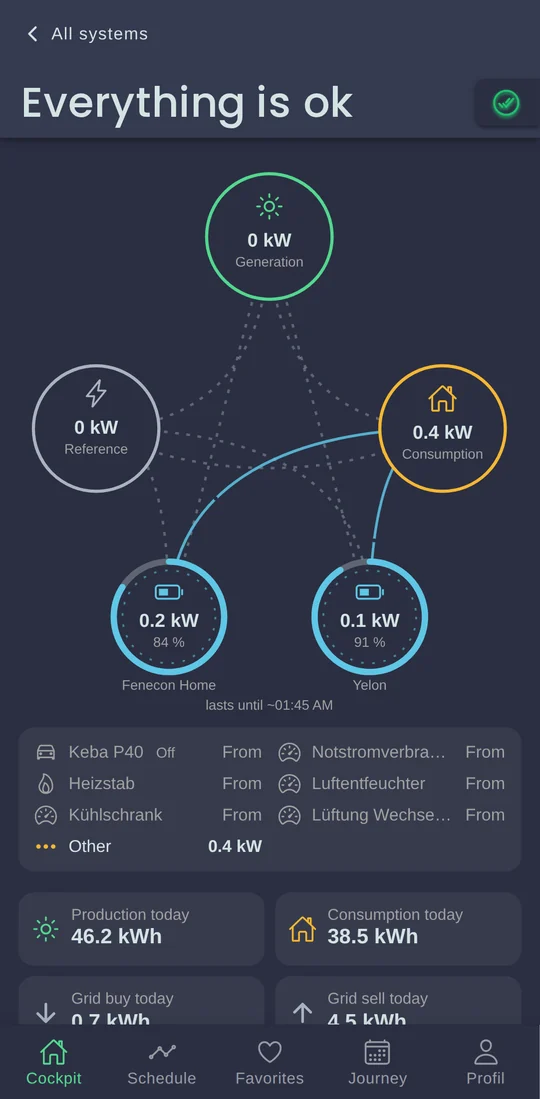
The energy flow is the heart of the cockpit. Each circle stands for a part of your system, and the lines show where electricity is flowing right now. Moving lines mean: energy is flowing here at the moment.
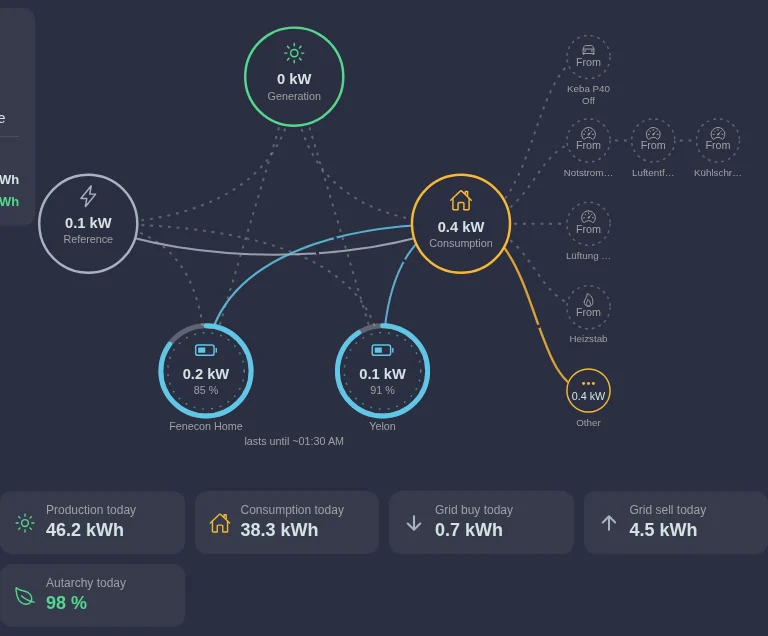
| Circle | What it shows |
|---|---|
| Generation (sun) | How much electricity your photovoltaic system is producing right now. |
| Grid (lightning bolt) | Electricity from the public grid (purchase) or into the grid (feed-in). |
| Consumption (house) | How much electricity your home is using right now, wherever it comes from. |
| Storage (battery) | Is your battery charging or discharging? The percentage is its state of charge. |
| Small circles on the right | Individual consumers such as a charging station, heat pump or heating rod, if they are connected. "Other" covers everything that is not measured separately. |
Below the storage you see, for example, "lasts until ~01:45". This is an estimate of how long the energy currently in the battery will last at your present consumption. While the battery is charging, you see something like "full ~14:30" instead.
You open the history and individual values for generation, consumption, storage and grid via the navigation on the left under Cockpit. The areas in detail explains what each area shows.
Today's figures
Below the energy flow, the cockpit sums up your day so far. The figures start again from zero every day at midnight.

- Production today: Electricity your system has produced since midnight.
- Consumption today: Electricity your home has used since midnight.
- Grid buy today / Grid sell today: Electricity you have bought from the grid or fed into it.
- Autarchy today: The share of your consumption you covered yourself today (self-sufficiency). 100 % means: no electricity from the grid.
If electricity prices are stored for your system, for example with a dynamic electricity tariff, you also see the money side:
- Grid cost today: What your grid purchase cost today, calculated quarter hour by quarter hour with the price of that quarter hour.
- Feed-in revenue today: What your feed-in earns you today.
- Savings today: What you saved today because you produced electricity yourself or took it from your battery instead of buying it.
Move the mouse over one of these tiles to see how the value is calculated.
Weather and PV forecast
At the top left you see the current weather at your location and the expected hours of sunshine. Below it is the PV forecast: how much electricity your system is expected to produce today and tomorrow.
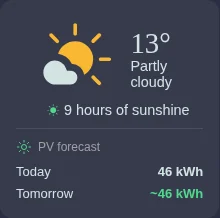
The forecast helps you plan: if lots of sunshine is expected tomorrow, it is worth running the washing machine or charging the car during the day, for example. Apps such as Dynamic electricity tariff use the forecast automatically.
The system status
At the top right your SOLIO shows whether everything is in order. A green tick means: all devices are working and can be reached.
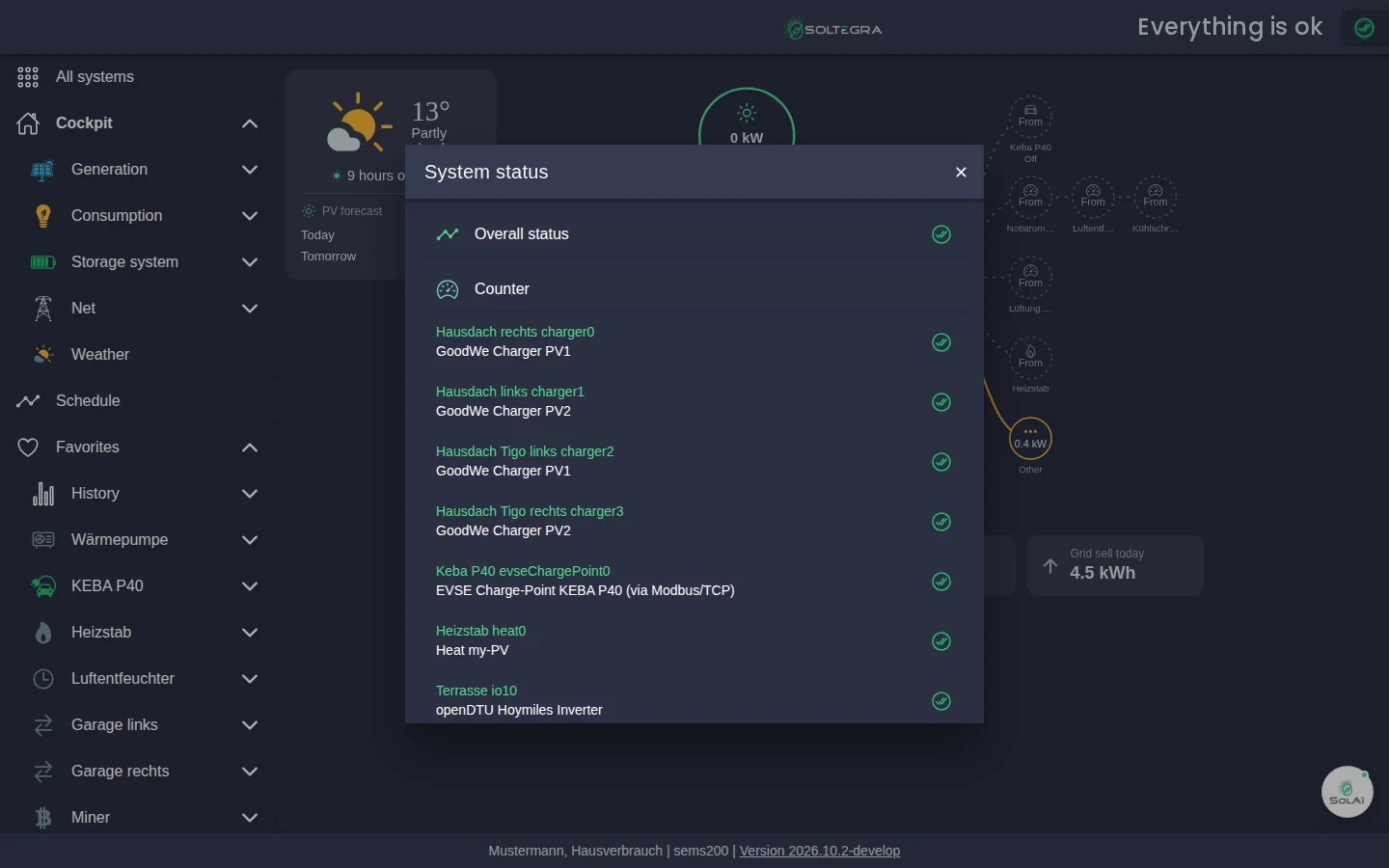
| Symbol | Meaning |
|---|---|
| Green tick | Everything is fine. |
| Yellow symbol | A note or a warning, for example a device that briefly does not respond. This usually resolves itself. |
| Red symbol | A fault. If it persists, please inform your installer. |
So that you do not miss any faults, you can be notified by e-mail. See Settings → Notification.
The navigation
The menu on the left takes you to every area of your system. On a smartphone you find the same entries in the bar at the bottom of the screen.

| Menu entry | What you find there |
|---|---|
| All systems | The list of all systems in your account. |
| Cockpit | The start page. Below it the areas Generation, Consumption, Storage system, Grid and Weather. |
| Schedule | What your SOLIO expects and plans for the next hours, for example with a dynamic electricity tariff. |
| Favorites | Your favourite pages, for example charging station, heat pump, heating rod or the History. |
| Your Energy Journey | The History with the export of your data, self-sufficiency, self-consumption and the App Center. |
| Profile | Your user account and the System Settings of your installation. |
An arrow next to a menu entry opens further sub-entries, for example History or Phase accurate under Generation.
Adding favourites
At the top of many pages you see a heart symbol. Clicking it adds the page to your Favorites, clicking it again removes it. This way the pages you need most are always right in the menu.
The schedule
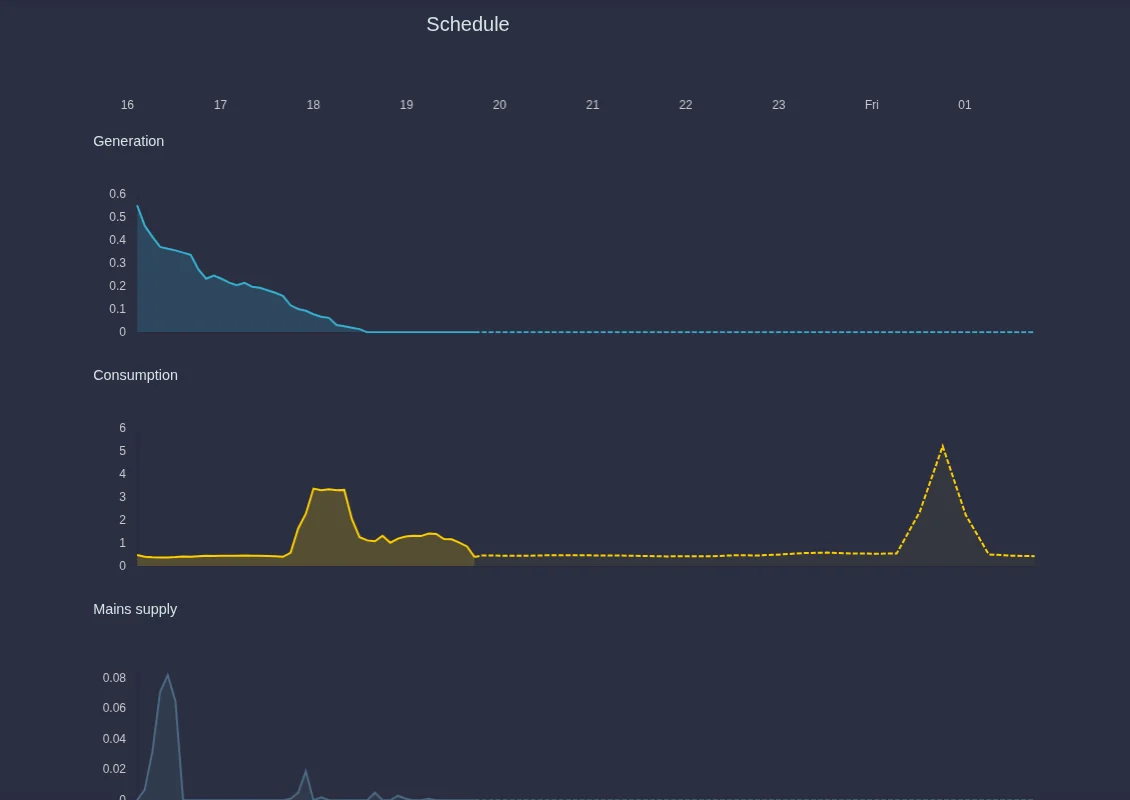
The Schedule shows what your SOLIO expects for the coming hours: production, consumption and grid purchase. Solid lines are measured values, dashed lines are the forecast. If you use a dynamic electricity tariff, you also see here when your battery will be charged from the grid at a low price.
SOLAI, your energy assistant
At the bottom right of the cockpit you find SOLAI. The assistant analyses your system and gives you concrete suggestions on how to use even more of your own electricity. SOLAI is a paid add-on service that you can activate there.

The cockpit on a smartphone
On a smartphone the cockpit is arranged from top to bottom: the system status at the top, then the energy flow, the list of your devices and today's figures. You reach the areas via the bar at the bottom of the screen.

Frequently asked questions
Why does production show 0 kW at night? Without sunlight a photovoltaic system does not produce electricity. Your home is then supplied from the battery and, once it is empty, from the grid.
Why does the grid sometimes show a purchase although the sun is shining? If your home needs more electricity than the system is producing at that moment and the battery cannot or may not close the gap, the rest comes from the grid. Small purchases of a few watts are normal because the control always lags slightly behind.
How up to date are the values? The values in the cockpit are updated continuously, usually every second.