The areas in detail
Each area in the cockpit answers a simple question: How much am I producing? How much am I using? How full is my battery? Here you learn how to read the displays.
How the areas are structured
You open an area in the navigation on the left under Cockpit. The pages always follow the same pattern:
- Power: The current value is shown at the top right, for example
1.18 kW. - History: The chart shows the last few hours as a solid line. The dashed line is your SOLIO's forecast for the coming hours.
- Details: Below it you see the individual devices, for example each roof of your PV system or each measured consumer.
- Sub-entries: Via the arrow in the menu you reach the History (earlier days) and in some cases further views such as Phase accurate.
kW (kilowatt) is the power at this moment, comparable to speed when driving a car. kWh (kilowatt hours) is the amount of energy over a period of time, comparable to the distance driven. Your electricity bill counts kWh.
Generation
Generation shows how much electricity your photovoltaic system and any other generators are delivering right now.

- The forecast (dashed) shows when your system is likely to deliver the most electricity tomorrow.
- Under Details you see each roof area or each inverter separately. This lets you spot quickly when part of the system is delivering less than usual.
- Phase accurate shows generation split across the three phases of your grid connection. This is mainly of interest to your installer.
Consumption
Consumption shows how much electricity your home needs right now, regardless of whether it comes from the sun, from the battery or from the grid.
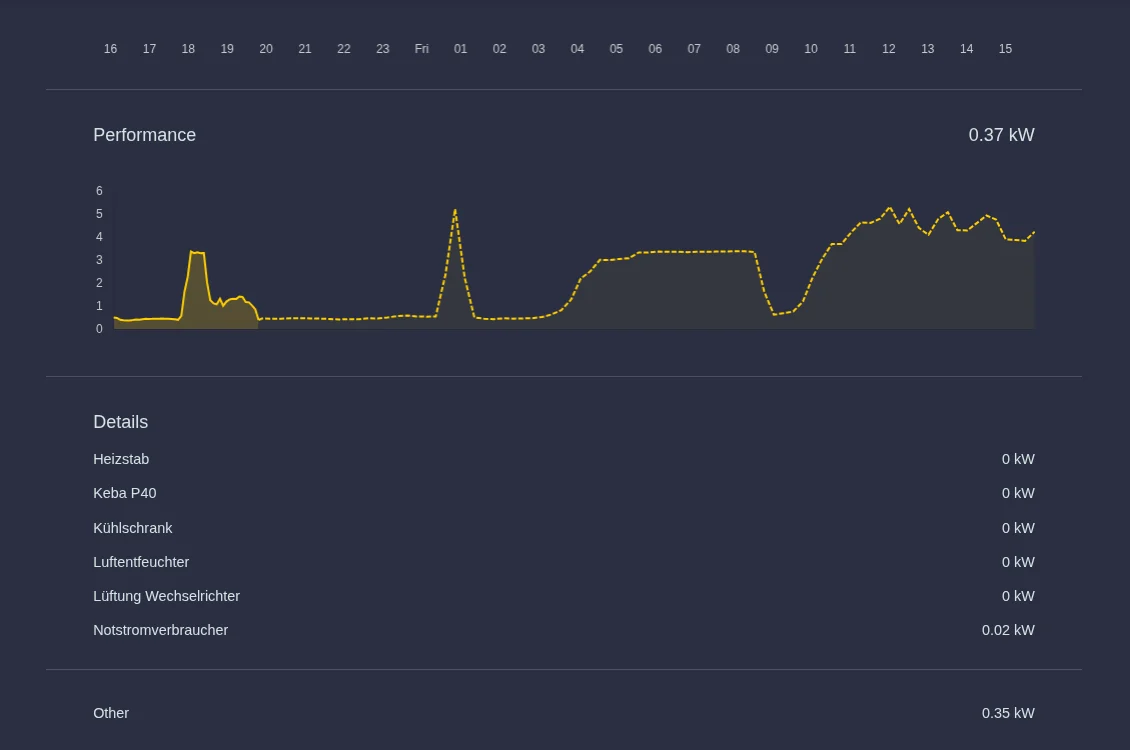
- Devices with their own meter or their own control, such as a charging station, heat pump or heating rod, are listed individually.
- Other is the rest: everything in the house that is not measured separately, such as lighting, kitchen and entertainment electronics.
- The dashed line is the consumption forecast. Your SOLIO learns it from your previous consumption.
Storage
The Storage system area shows whether your battery is currently charging or discharging and how full it is.
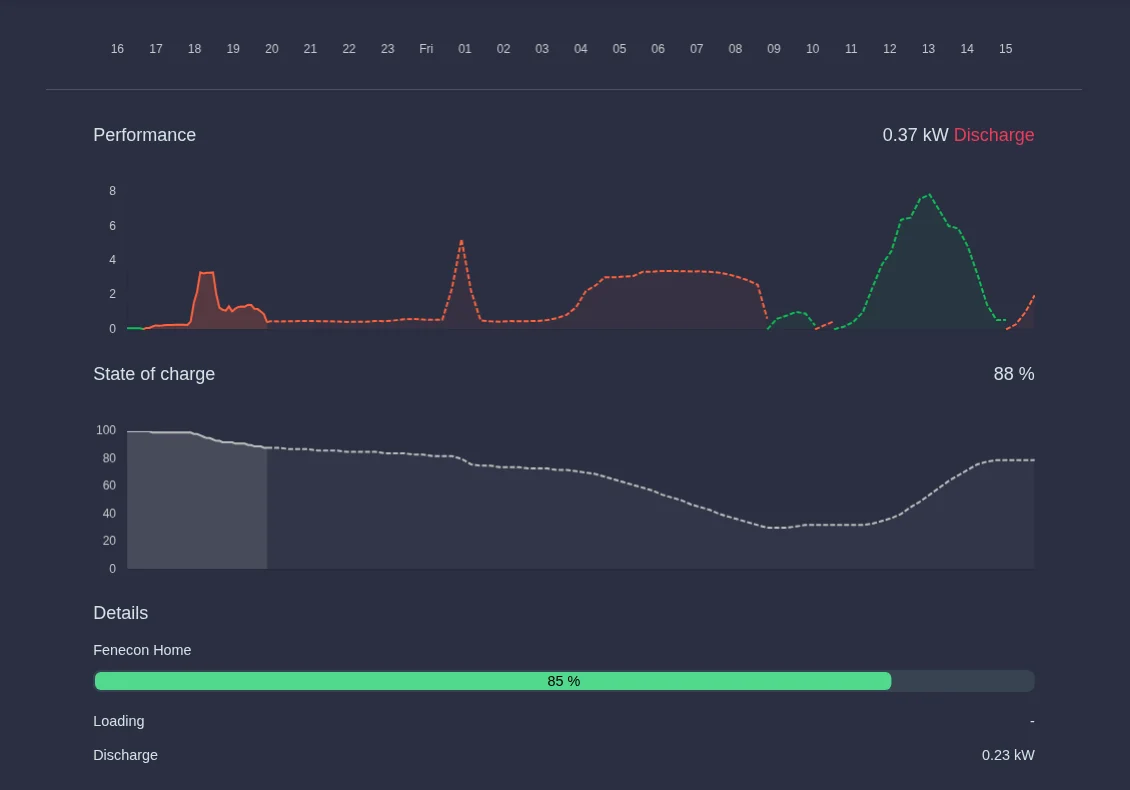
- Power: The value is followed by charging or discharging. In the chart, charging is shown in green and discharging in red.
- State of charge: The fill level in per cent. 100 % means: the battery is full.
- Details: If you have several batteries, you see each of them here with its own fill level and its own charging or discharging power.
Many batteries keep a small reserve to protect the cells or to be prepared for a power cut. More about this under Emergency power reserve.
Grid
The grid area shows the exchange with the public electricity grid at your grid connection point.
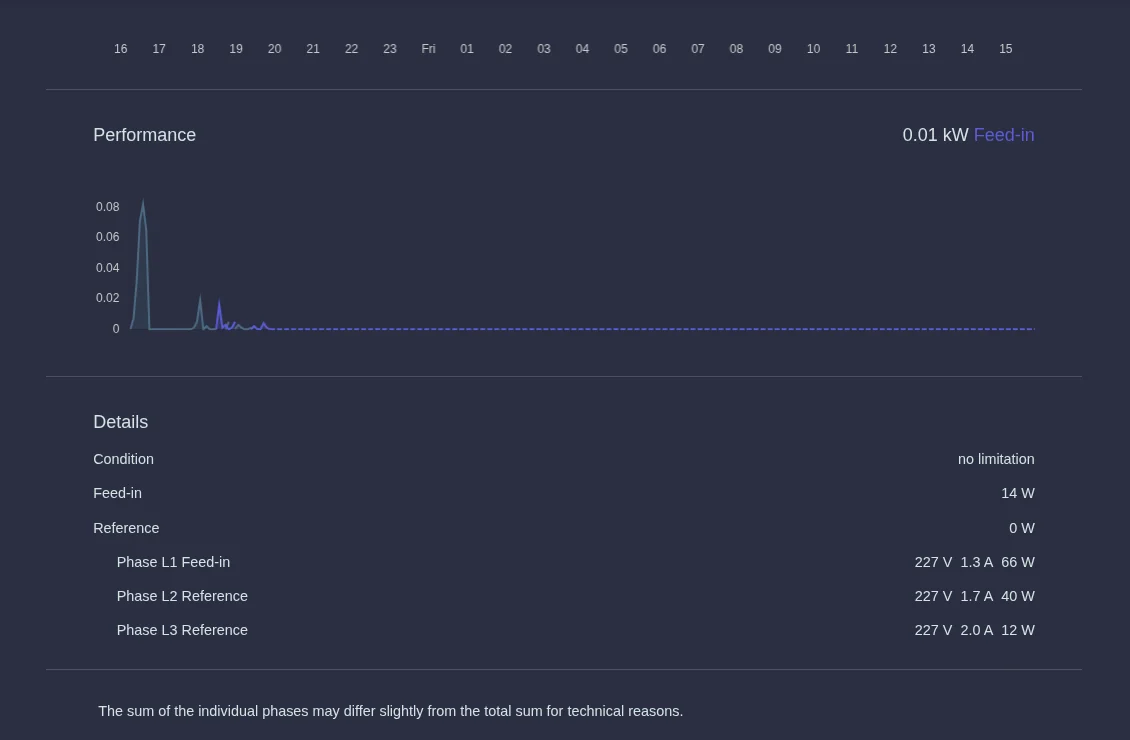
- Purchase is electricity you buy from the grid. Feed-in is electricity you deliver to the grid.
- The state shows whether feed-in is currently limited, for example because of requirements from your grid operator. "no limitation" means you may feed in without restriction.
- The three phases L1, L2 and L3 show voltage, current and power per phase. It is normal for one phase to draw power while another feeds in at the same time.
Weather
The weather area shows the forecast for your location: today hour by hour and for the whole week, each with the expected hours of sunshine.
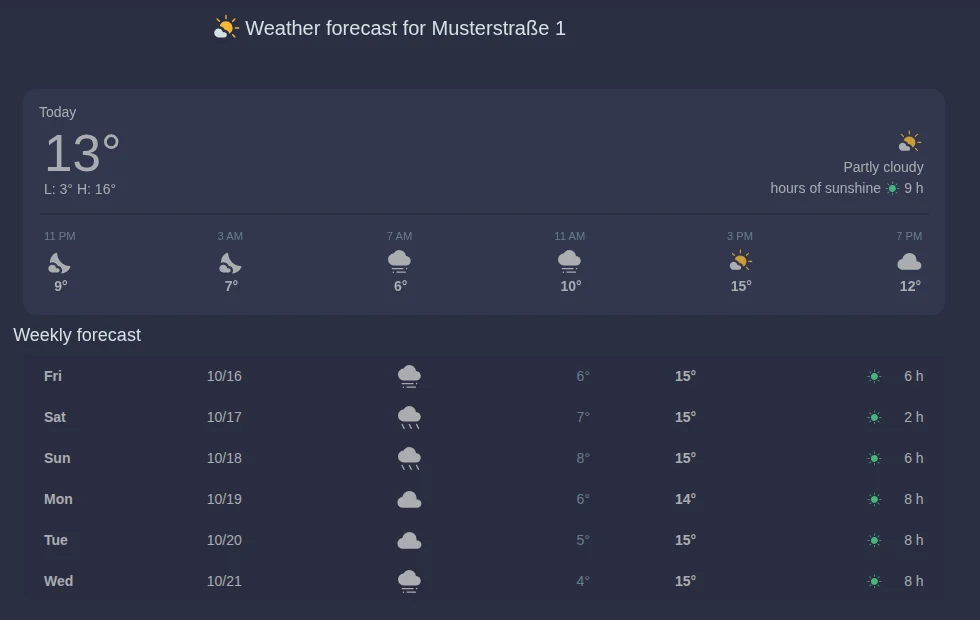
The hours of sunshine give you a good feeling for how much your system will produce over the next few days. More about the forecast in the Weather forecast app.
Self-sufficiency
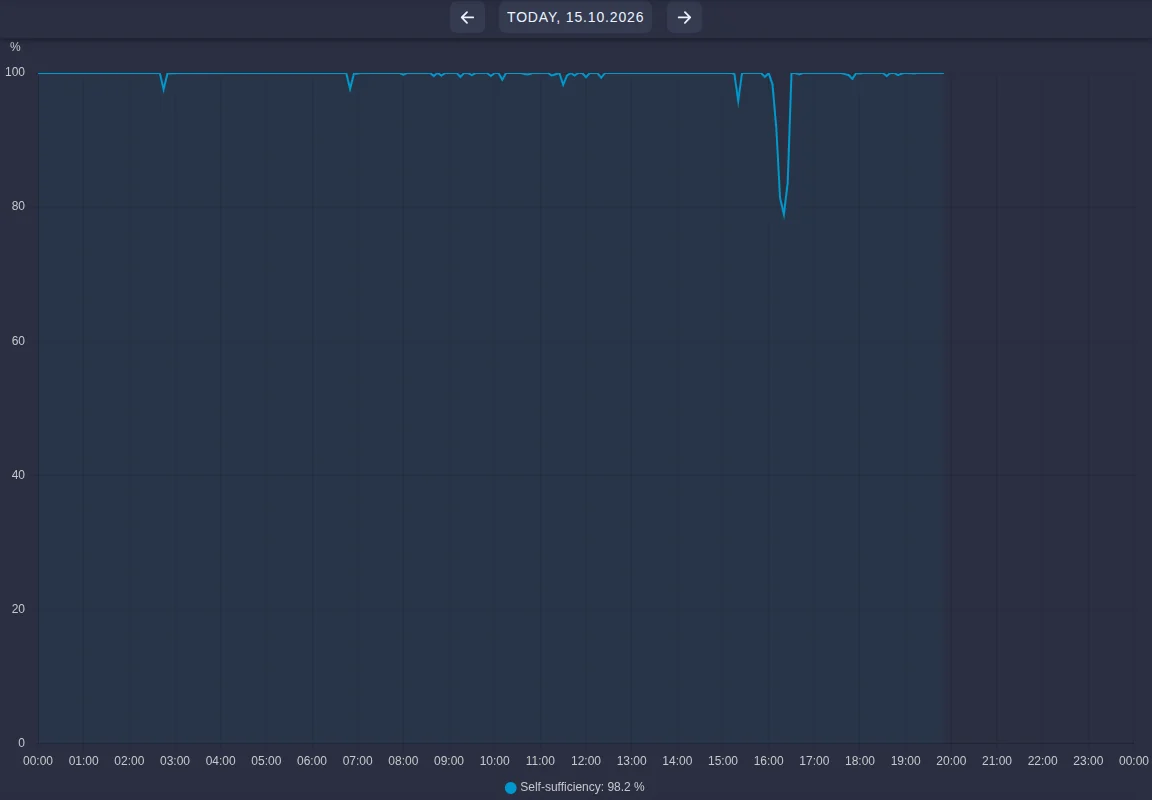
Self-sufficiency (shown as Autarchy or Self-sufficiency in the portal) tells you how independent you are from the electricity grid: the share of your consumption that you cover with your own production and your battery.

- 100 % means: you are currently not drawing any electricity from the grid.
- 0 % means: all of your consumption is currently coming from the grid, for example at night with an empty battery.
You find it under Your Energy Journey. Under History you see how it developed over the day or over a longer period:
Self-consumption
Self-consumption shows the other side: what share of the electricity you produce stays with you, in the house or in the battery, instead of flowing into the grid?
- 100 % means: you use all of your solar power yourself.
- A lower value means: part of it flows into the grid. This happens, for example, at midday when the battery is full.
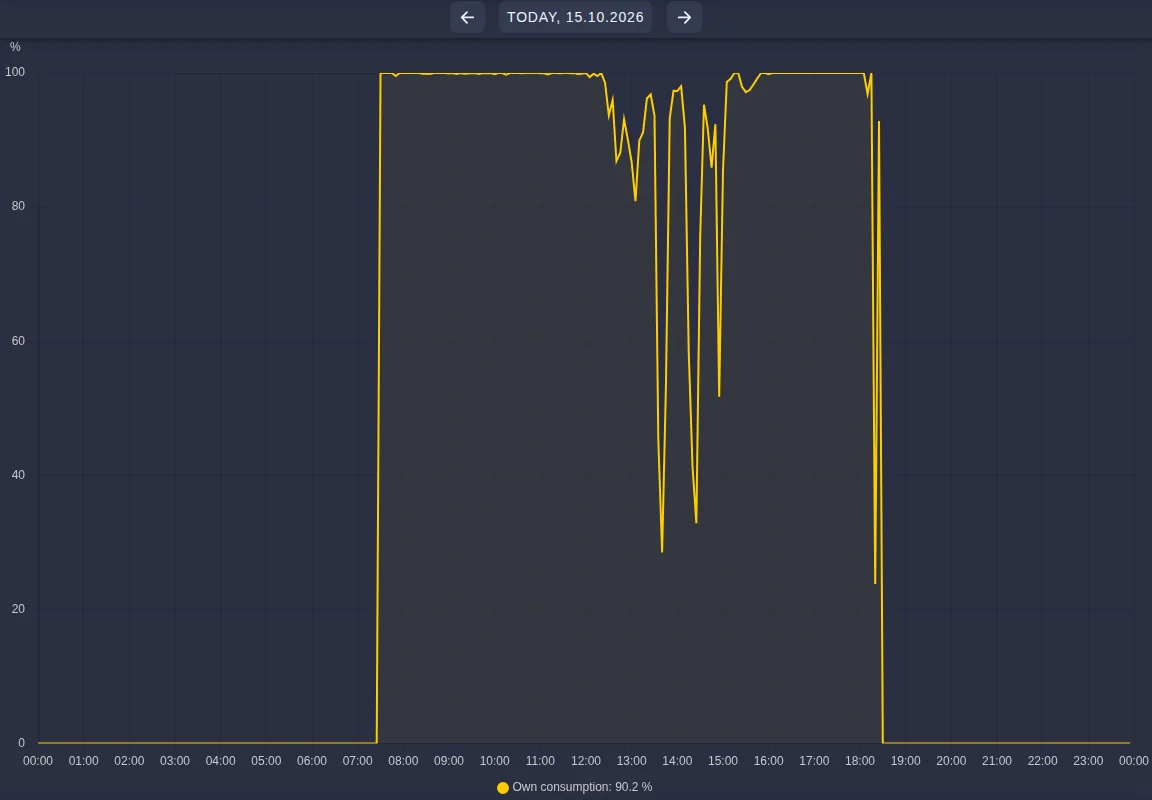
They belong together. High self-sufficiency saves you electricity costs. High self-consumption shows that you make good use of your solar power instead of selling it cheaply to the grid. Apps such as Heating rod or charging with solar power increase both.
Temperature
If temperature sensors are connected to your SOLIO, for example in the hot water tank, you see their values as a separate area and in the history. Which sensors exist depends on your system. Your installer sets them up.
Energy monitor
The energy monitor combines all values in one chart: production, consumption, charging and discharging of the battery, purchase, feed-in and the state of charge. You find it in the History. History & analysis explains how to choose periods there and download your data.