History & analysis
In the history you see how your system performed on a particular day or how a whole month or year developed. This helps you recognise patterns and see what your system brings you.
Where do I find the history?
- Under Favorites → History or Your Energy Journey → History you open the energy monitor with all values.
- Every area in the cockpit also has its own History, for example under Generation or Storage system.
- For self-sufficiency and self-consumption you find the history under Your Energy Journey.
The energy monitor
The energy monitor shows all energy flows of a day in one chart. Below the chart you find the totals for the selected period.

| Entry in the legend | Meaning |
|---|---|
| Production | Electricity from your PV system |
| Consumption | Electricity demand of your home |
| Charging / discharging | Electricity flowing into or out of the battery |
| Feed-in / purchase | Electricity into or out of the grid |
| State of charge | Fill level of the battery in per cent |
Click an entry in the legend to hide its line, click again to show it. This way you can, for example, compare only production and consumption.
Move the mouse over the chart or tap it on your phone to see the exact values at any point in time.
Choose a period
The selected period is shown at the top of the page, for example TODAY, 15.10.2026.

The selection opens with Day, Week, Month, Year, Total and Other period.
With Other period you set the start and end date yourself, for example for your holiday.
The arrows on the left and right jump back or forward by one period: one day, one week, one month or one year.
From one week upwards the chart shows bars: one bar per day or per month, in kWh.

Export your data
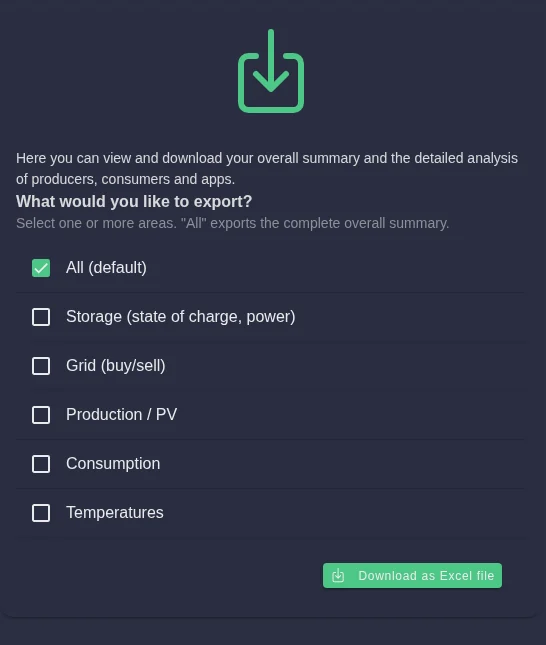
You would like to analyse your values yourself, for example for your tax return or to compare them with your electricity bill? Then download them as an Excel file.
Open Your Energy Journey → History → Export.
Choose the period you want at the top, for example a month or a year.
The default exports the complete overview. Alternatively, choose individual areas such as storage, grid, production, consumption or temperatures.
Click the download button. The file is saved to your downloads folder.
If you would rather receive your figures automatically: with the energy reports you get a summary by e-mail every day, week or month.
Frequently asked questions
Why are values missing for some hours in the history? If your SOLIO had no internet connection for a while, it could not send any data to the portal during that time. Your system still worked as normal.
Why do the values not exactly match my electricity meter? Your SOLIO measures very precisely, but not with a calibrated meter. Small differences to your grid operator's meter are therefore normal. The meter of your grid operator always applies for billing.
How far back can I look? With Total you see all data since your SOLIO was commissioned.