Getting started
This is how you sign in, open your system and set up the view the way you like it. All you need are the login details you received when your SOLIO was commissioned.
Three ways to your SOLIO
Via the SOLIO portal at portal.soltegra.io, from anywhere in the world.
For Android, with all the functions of the portal.
Directly in your own network, in case the internet connection is down.
Sign in to the portal
Go to portal.soltegra.io in your browser. It is a good idea to bookmark the page straight away.
Enter your e-mail address and password and click Login. If your account is linked to Google, you can also use Sign in with Google.
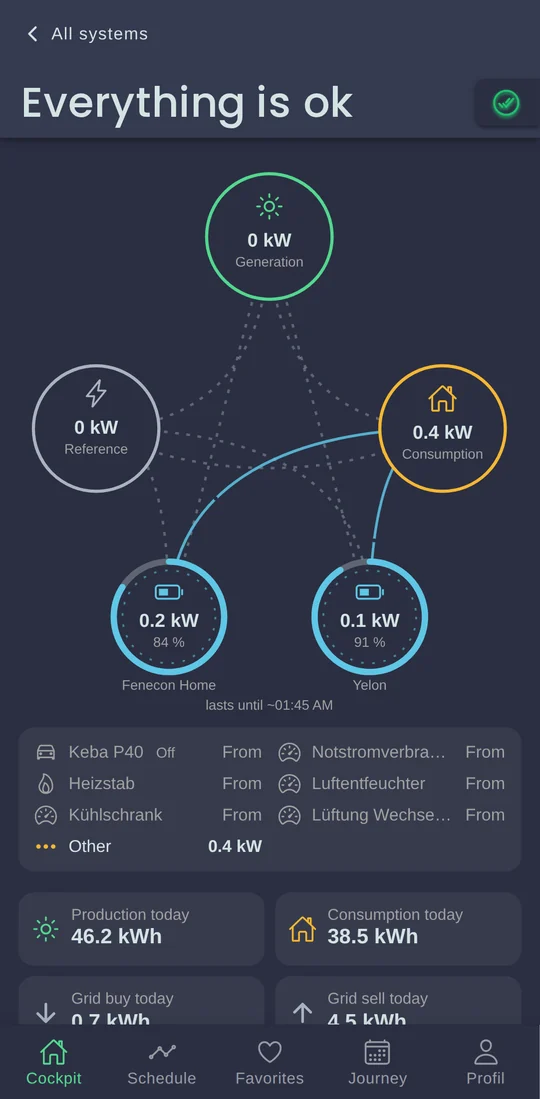
After signing in you see the cockpit of your system right away. If you have several systems, choose the one you want first.
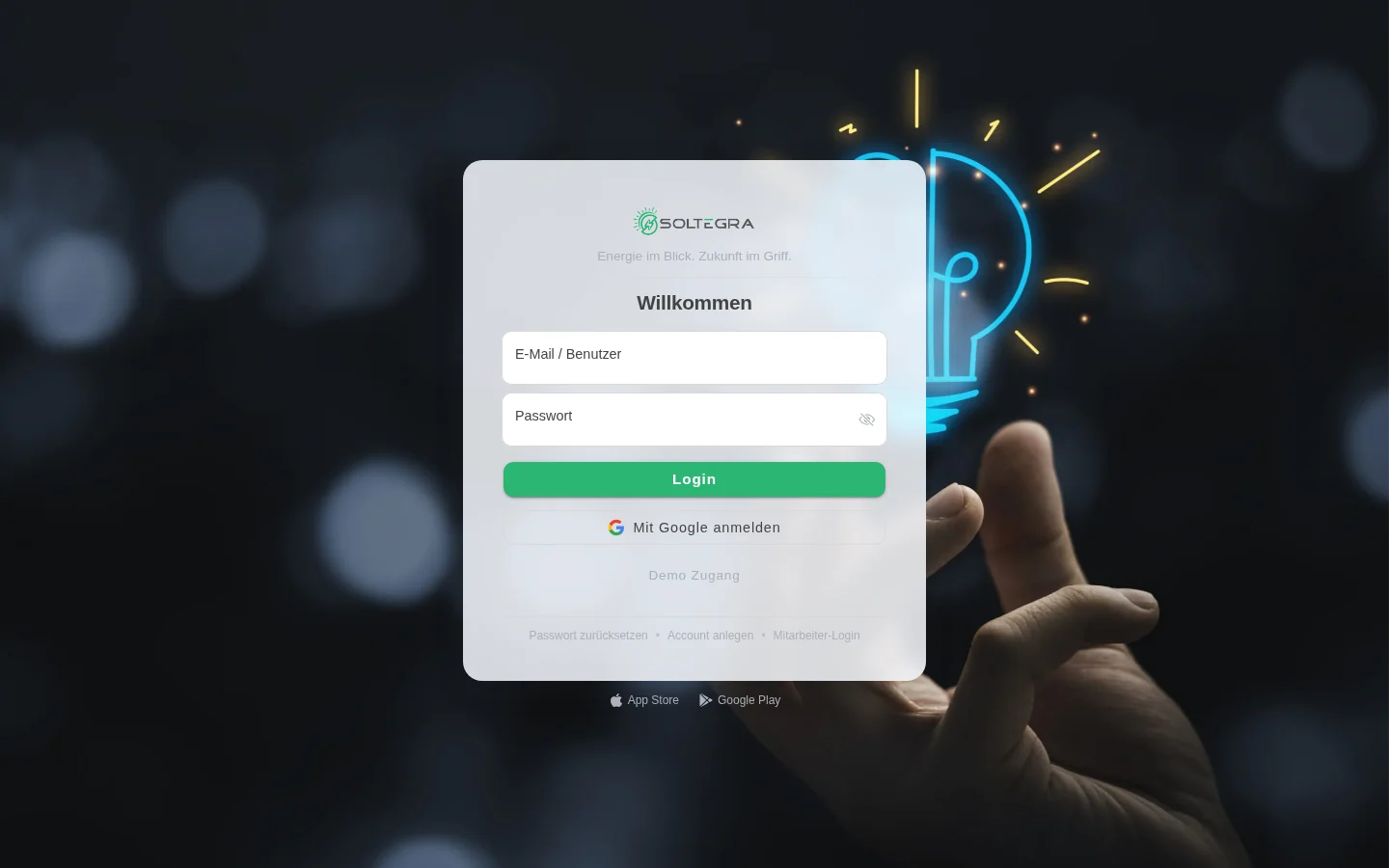
You do not have a SOLIO yet and would like to look around the portal? Demo access on the sign-in page opens an example system.
Install the app
The SOLIO app offers the same functions as the portal and is optimised for use on the go. You sign in with the same login details.
- Android: Tap Google Play on the sign-in page of the portal or download the app directly.
- iPhone and iPad: The iOS app is in preparation. Until then, open the portal in Safari and choose Share → Add to Home Screen. The portal then appears on your home screen just like an app.
On a smartphone the view rearranges itself automatically: you reach the most important areas via the bar at the bottom of the screen.

Choose your system
If only one SOLIO is linked to your account, you land directly in its cockpit after signing in. With several systems you first see the overview All systems.

- Search and sort: Use the search field to find a system by name or number. Below it you can sort and filter the list.
- Open a system: Click a row to open the cockpit of that system.
- Back to the overview: In the menu on the left you always find All systems.
Switch on the new design
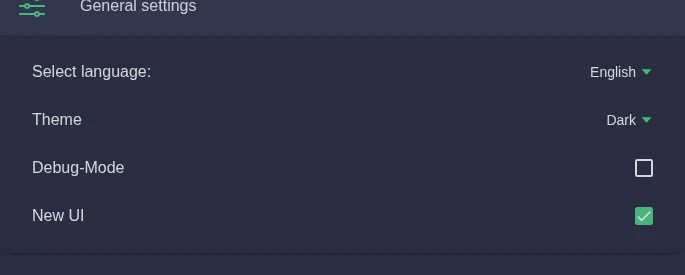
The SOLIO portal has a new, clearer design with the cockpit as its start page. It is already active for many systems. This is how you switch it on or off:
Open the menu and click your name or Profile.
Under General settings, tick New UI.
The view changes immediately. You can switch back at any time.
This help centre describes the new design. All values and functions are also available in the previous view, they are just arranged differently.
At home without internet
Your SOLIO keeps working reliably even if the internet connection fails. In that case you can view the current values directly in your home network.
Your smartphone or computer must be in the same Wi-Fi or network as your SOLIO.
Your router automatically gives your SOLIO an address (IP address). You find it in the device list of your router, for example on a FRITZ!Box under Home Network → Network.
Type the address into the address bar of your browser, for example 192.168.178.50.
Sign in with your password for direct access to the SOLIO. As delivered, this is owner for all functions as the owner and user for viewing only (guest access).
Change the default password so that nobody in your home network can access your system without you knowing. See Change the password of your SOLIO.

Some routers or firewalls block the connection of the SOLIO to the internet, especially right after installation. If the portal keeps showing your system as "not connected" although you can reach it in your home network, please contact your installer.
Forgotten your password?
On the sign-in page, click Reset password and enter the e-mail address of your account.
You will receive an e-mail with a link. If necessary, also check your spam folder.
Follow the link and choose a new password. Then sign in as usual.
You can also use this to change your portal password while you still know it. More about your passwords under Your user account.
Who may do what? The roles
Not everyone who can see your system may change settings. This is controlled by roles:
| Role | What is possible? |
|---|---|
| Guest | View values and history. |
| Owner | In addition: change settings, use apps, set up notifications and energy reports. |
| Installer | In addition: technical settings such as network and devices. Your installer has this role. |
You can see your own role on your user page under Access level.