Settings
In the system settings you see the key data of your installation, get notified about faults and keep your SOLIO up to date.
How to open the settings
In the navigation, open Profile → System Settings. You see an overview of all areas, each with an Open button.

As the owner you see the areas described here. Some technical areas are only visible to your installer. More under Roles.
System profile
In the system profile you find the master data of your SOLIO, for example the name of your system, the product type, the installed version and the date it was first commissioned.
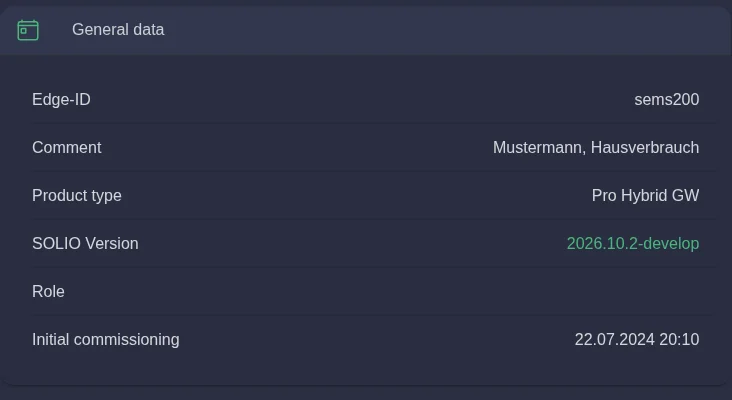
Further down you see the devices of your system, such as the battery, inverter or charging station. There you can also give devices your own names, for example "Garage" instead of a technical label. These names then appear everywhere in the portal, including the energy flow.
Under Password Management you also change the password for signing in directly to the SOLIO in your home network, see Change the password of your SOLIO.
Notification
Your SOLIO lets you know by e-mail when something is wrong. For example, you find out straight away when your system has lost its internet connection.
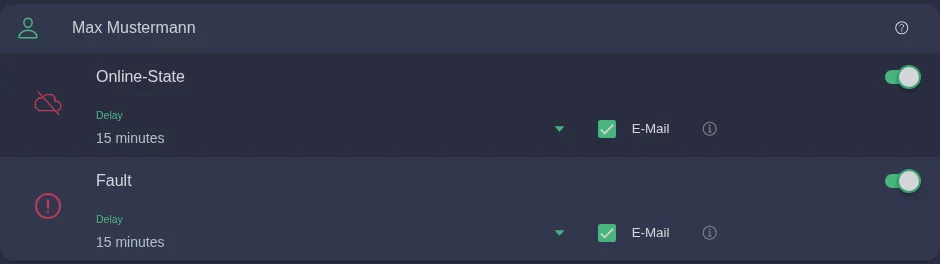
| Notification | When do you get an e-mail? |
|---|---|
| Online status | When your SOLIO has had no connection to the portal for some time. |
| Error | When a fault occurs in your system and persists. |
Use the switch on the right to activate or deactivate the notification.
Under Delay you set how long a problem must last before you receive an e-mail. With 15 minutes you find out quickly; a longer time avoids messages for short interruptions.
Click Save. A short message confirms that your settings have been applied.
Notifications apply to your user account. Other people with access to the system can choose their own settings.
Network configuration
Here you see how your SOLIO is connected to your home network. Normally you do not need to change anything here.
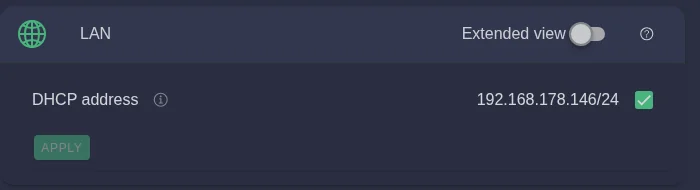
- DHCP (default): your router assigns the address automatically. The current address is shown next to it. You need it if you want to access your SOLIO at home without internet.
- Fixed address: if your network requires a fixed address, your installer can enter it here. The Extended view offers further settings.
A wrong network setting can make your SOLIO unreachable. Only change the settings if you are sure, or leave it to your installer.
SOLIO system: update and restart
Under SOLIO System you keep your system up to date and can restart it if necessary.

System update
Your SOLIO compares the installed version with the latest version. If there is an update, the button Install the latest version appears.
Click Install the latest version and confirm the security prompt.
The update takes up to 10 minutes. Your SOLIO restarts during the update, so the display is briefly interrupted.
Afterwards the installed and the latest version show the same number, and the message "The system is up to date with the latest software" appears.
Restart
With the restart button you restart your SOLIO, for example if your installer asks you to. During the restart no data is recorded and no devices are controlled for a short time.
Log
The Log is the protocol of your SOLIO. It continuously shows what is happening in the system and is mainly intended for troubleshooting by your installer or our service team. You do not need it in everyday use.
Energy reports
You set up regular summaries of your system as a PDF by e-mail under Energy Reports. Everything about this is on the Energy reports page.