Your user account
On your user page you see which account you are signed in with and set the language and design. Here you also find out how to change your passwords.
Open your user page
In the navigation, open Profile and click your name.
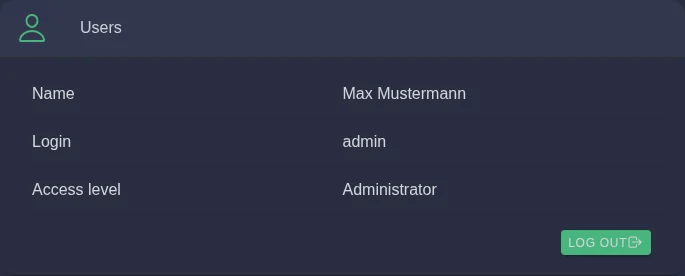
- Name and Login: your name and the e-mail address you sign in with.
- Access level: your role, for example Owner. What the roles mean is explained under Getting started.
- Contact details: below that you can change your contact details with Edit and apply them with Save.
- Log out: signs you out of the portal or the app.
Language, design and new UI
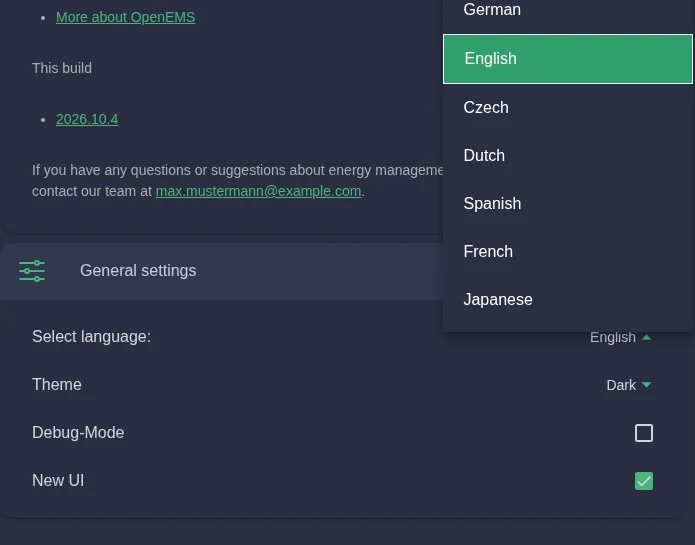
Under General settings you adapt the portal:
| Setting | What it does |
|---|---|
| Select language | German, English, Czech, Dutch, Spanish, French or Japanese. |
| Theme | Light, Dark or System. With "System" the portal follows the setting of your device, so it turns dark automatically in the evening, for example. |
| New UI | Switches the new design with the cockpit on or off, see Switch on the new design. |
The pictures in this help centre show the dark design. In the light design all elements are in the same place, only the colours differ.
Passwords
There are two different passwords:
| Password | What for? | Where to change it? |
|---|---|---|
| Portal password | Signing in to the portal and the app | On the sign-in page via Reset password |
| SOLIO password | Signing in directly to the SOLIO in your home network, without internet | In the System profile under Password Management |
Change your portal password
You change your portal password via Reset password on the sign-in page. You receive an e-mail with a link and set a new password there. The steps are described under Getting started.
Change the password of your SOLIO
As delivered, you sign in directly to the SOLIO with a default password. Change it so that nobody in your home network can access the system without you knowing.

Open Profile → System Settings → System profile and scroll to Password Management.
Next to Change Password, click Edit. Enter the current password and the new password twice.
After saving, a confirmation appears. From now on the new password applies when signing in directly to the SOLIO.
If you have forgotten the password of your SOLIO, your installer can create a new one via Reset Password.
Use at least 12 characters and a password you do not use anywhere else. A password manager means you do not have to remember anything.
Several people, one SOLIO
Would other people in your household or business like to access your system, for example your partner or your property manager? Each person gets their own account with their own role and their own notifications. Please contact your installer or our service team about this.