Modbus/TCP - Read/Write Access
Via Modbus/TCP, other devices in your network can query your SOLIO's values directly, for example a building management system, a controller or a visualisation system. With write access, an external system can also specify how strongly your battery charges or discharges.
This page is intended for installers, electricians and system integrators. As a homeowner you usually do not need this interface.
What do I need this for?
Modbus/TCP is a widely used standard for exchanging data between devices in a local network. Typical uses:
- A building management system or PLC displays or evaluates the state of charge, grid purchase and generation.
- A higher-level energy management system or a direct marketer specifies the charging and discharging power of the battery.
- Your own visualisation or smart home system reads the values regularly.
Read values. Included as standard.
Set charging and discharging power. Enabled on request.
The complete table for your system as an Excel file.
Requirements
- The accessing device, for example a PC or a controller, is in the same network as the SOLIO and can reach its IP address directly.
- You know the IP address of the SOLIO, for example from your router's device list.
- Up to five connections are possible at the same time.
Modbus/TCP has no login. Any device that can reach your SOLIO in the network can read the values and, if write access is enabled, send setpoints. Therefore never open port 502 to the internet.
Read access
Read access is included as standard. The Modbus/TCP reading app is installed in the App Center for this.
| Parameter | Value |
|---|---|
| Device address | IP address of the SOLIO, e.g. 192.168.178.30 |
| Port | 502 |
| Unit ID | 1 |
| Function codes | 03 (Read Holding Registers), 04 (Read Input Registers) |
| Addressing | Base address 0 |
| Byte order | Big endian |
By default, the interface provides the system's sum values (component _sum). Further components, for example individual batteries or meters, can be enabled for specific projects.
Downloading the register table
The registers depend on which components are enabled. You can get the right table for your system directly from the portal:
Open Profile → System Settings in the menu and click Open next to System profile.
Scroll through the list of components to the entry for the Modbus/TCP interface.
Click Download protocol. You will receive an Excel file with all registers.
Important registers (excerpt)
The following table shows the most important sum values. The table for your system is always authoritative.
| Address | Name | Type | Description | Unit |
|---|---|---|---|---|
| 0 | Hash of “OpenEMS” | uint16 | Identifier 0x6201 | |
| 2–4 | OpenEMS Version Major/Minor/Patch | uint16 | Software version | |
| 5 | Manufacturer | string16 | Manufacturer | |
| 200 | Component-ID | string16 | _sum | |
| 222 | _sum/State | enum16 | 0: Ok, 1: Info, 2: Warning, 3: Fault | |
| 302 | _sum/EssSoc | uint16 | Battery state of charge | % |
| 303 | _sum/EssActivePower | float32 | Battery power AC, negative = charging, positive = discharging | W |
| 315 | _sum/GridActivePower | float32 | Grid power, negative = feed-in, positive = purchase | W |
| 327 | _sum/ProductionActivePower | float32 | Total generation | W |
| 331 | _sum/ProductionAcActivePower | float32 | Generation AC | W |
| 339 | _sum/ProductionDcActualPower | float32 | Generation DC | W |
| 343 | _sum/ConsumptionActivePower | float32 | Consumption | W |
| 351 | _sum/EssActiveChargeEnergy | float64 | Battery charge energy | Wh |
| 355 | _sum/EssActiveDischargeEnergy | float64 | Battery discharge energy | Wh |
| 359 | _sum/GridBuyActiveEnergy | float64 | Grid purchase energy | Wh |
| 363 | _sum/GridSellActiveEnergy | float64 | Grid feed-in energy | Wh |
| 367 | _sum/ProductionActiveEnergy | float64 | Generation energy | Wh |
| 379 | _sum/ConsumptionActiveEnergy | float64 | Consumption energy | Wh |
| 391–395 | _sum/EssActivePowerL1 … L3 | float32 | Battery power per phase | W |
| 397–401 | _sum/GridActivePowerL1 … L3 | float32 | Grid power per phase | W |
| 403–407 | _sum/ProductionAcActivePowerL1 … L3 | float32 | Generation AC per phase | W |
| 409–413 | _sum/ConsumptionActivePowerL1 … L3 | float32 | Consumption per phase | W |
| 415 | _sum/EssDischargePower | float32 | Actual discharge power AC, negative = charging | W |
| 417 | _sum/GridMode | enum16 | 1: On-Grid, 2: Off-Grid |
A float32 occupies two registers, a float64 four.
Example: reading the state of charge with QModMaster
The free program QModMaster is well suited for a first test. The state of charge is read from register 302 (_sum/EssSoc, uint16).
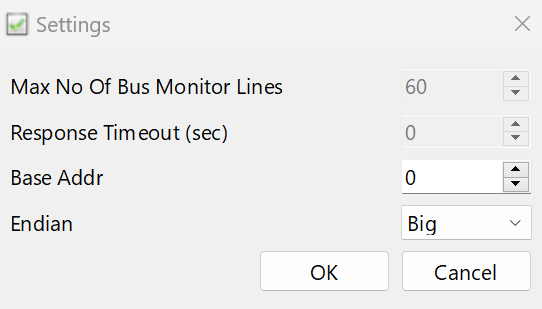
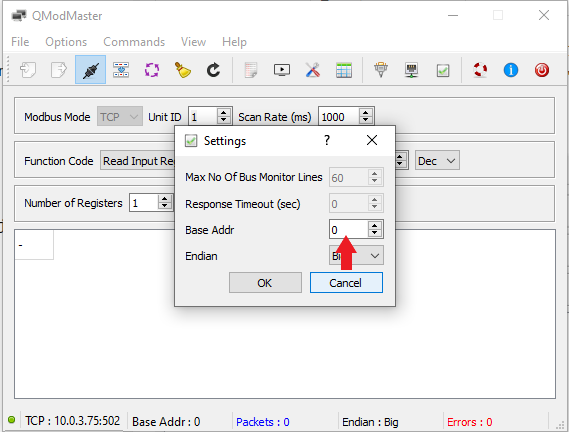
QModMaster starts at address 1 by default. Set the Base Address to 0, otherwise all addresses are shifted by one.
Under Modbus TCP Settings, enter the SOLIO's IP address as Slave IP and 502 as TCP Port.
Select Read Input Registers (0x04) as Function Code, 302 as Start Address and 1 for Number of Registers. Click Read/Write. The value appears in the lower area.
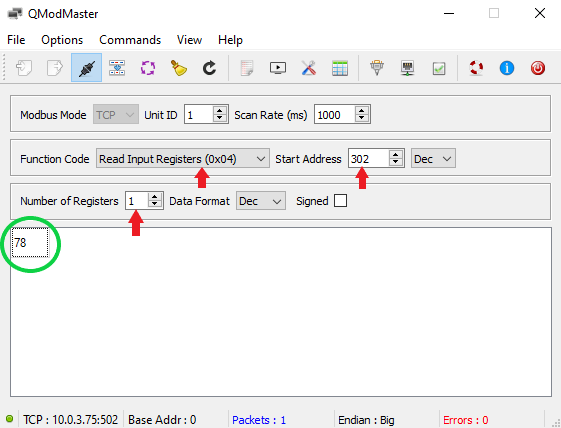
You can compare the value with the state of charge in the portal.
Write access
With write access, an external system can set the active and reactive power of the battery. It is not included as standard but can be enabled at any time with the Modbus/TCP write access app. Please contact us.
| Parameter | Value |
|---|---|
| Device address | IP address of the SOLIO |
| Port | 502 |
| Unit ID | 1 |
| Function codes | 03, 04 (read), 06 (Write Single Register), 16 (Write Multiple Registers) |
| Timeout | 60 seconds (default) |
Writable registers
The registers belong to the battery's block (ess0). The addresses below apply to a typical system. Check them in the register table for your system.
| Address | Name | Type | Meaning | Unit |
|---|---|---|---|---|
| 706 | ess0/SetActivePowerEquals | float32 | Active power setpoint | W |
| 708 | ess0/SetReactivePowerEquals | float32 | Reactive power setpoint | var |
| 710 | ess0/SetActivePowerLessOrEquals | float32 | Maximum discharge power setpoint | W |
| 712 | ess0/SetReactivePowerLessOrEquals | float32 | Maximum reactive power setpoint | var |
| 714 | ess0/SetActivePowerGreaterOrEquals | float32 | Maximum charge power setpoint | W |
| 716 | ess0/SetReactivePowerGreaterOrEquals | float32 | Minimum reactive power setpoint | var |
- Sign: negative values charge the battery, positive values discharge it.
- Timeout: a setpoint only applies for the duration of the timeout, 60 seconds by default. Send the value again regularly. If no new setpoint arrives, normal control takes over again.
- Actual value: the battery's limits still apply. The actual power may therefore differ from the setpoint.
Display in the portal
Once write access is set up, you will find a separate entry for the interface in the menu under Storage system. It shows the Current status (External specification is taken into account or No external specification available), the last setpoint written and the Actual value. You can also get the register table there via Download protocol.
Example: setting the discharge power with QModMaster
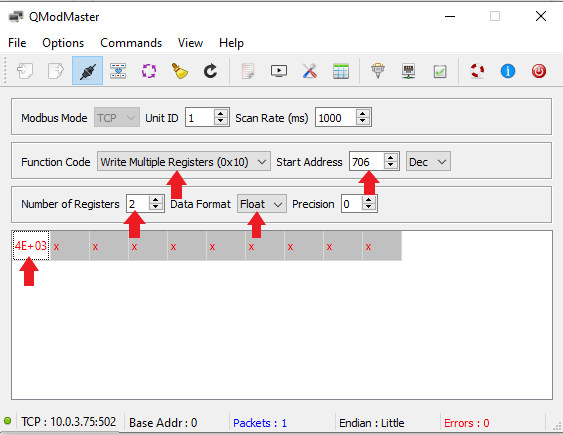
In this example the battery should discharge at 4,000 W. ess0/SetActivePowerEquals is written to register 706 (float32, two registers).
Base Address is set to 0, Endian to Big.
Select Write Multiple Registers (0x10) as Function Code, 706 as Start Address, 2 for Number of Registers and Float as Data Format. Enter 4000 and click Read/Write.
In the portal under Storage system you can see that the battery is discharging. After 60 seconds without a new setpoint it ends.