Timer
The timer switches a device on or off at fixed times, on the days of the week you choose. It suits devices such as a dehumidifier, a circulation pump or garden lighting. You can change the schedule yourself in the portal at any time.
At a glance
- A schedule is made up of actions: a time, On or Off, and the days of the week.
- Your SOLIO switches at exactly these times. In between, the device stays as it is.
- With Manual override you switch by hand straight away. This applies until the next action in the schedule.
- The overview shows the current state and the Next Action.
- Your installer sets up which device is connected to the timer.
What it looks like
You will find your timer in the menu on the left under Cockpit → Consumption, with the device's name, in our example "Luftentfeuchter" (dehumidifier). You can recognise it by the clock icon. When you expand the entry, two sub-pages appear: Manual override and Schedule.

| Display | Meaning |
|---|---|
| Condition | Whether the device is currently On or Off. |
| Next Action | When the timer switches next and how, for example "07:00 – Off". |
| Output Channel | Technical information for your installer: the connection the device is wired to. |
Creating the schedule
Each action says: "At this time, on these days: On" or "Off". If a device should run for a certain period, you therefore need two actions, one to switch it on and one to switch it off.
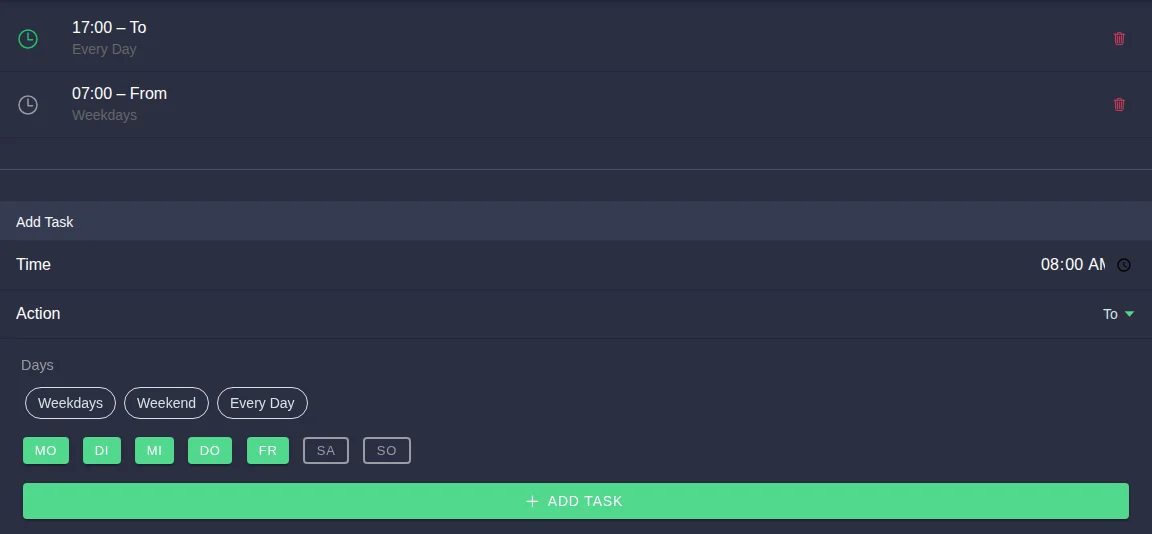
Expand your timer in the menu and click Schedule.
Under Add Task, enter the time you want in the Time field.
Under Action, choose whether the device should be switched on or off.
Click the days you want. The day buttons are labelled with German abbreviations from Mo (Monday) to So (Sunday). Days highlighted in green are selected. Weekdays, Weekend and Every Day select several days at once.
Click Add Task. The action appears in the list at the top and is saved immediately.
At least one day must be selected. To delete an action, click the red bin next to it. To change an action, delete it and create it again. As long as no action exists, the page says No schedule configured and the timer does not switch.
Check that every switch-on time has a matching switch-off time. In the example above, the dehumidifier switches on at 17:00 every day but only switches off at 07:00 on weekdays. So it keeps running from Friday evening until Monday morning.
Switching by hand
If the device should run outside the schedule or switch off earlier, use Manual override.

Expand your timer in the menu and click Manual override.
Click On or Off. The device switches straight away and a short message confirms it. The button for the state the device is already in cannot be clicked.
Your choice applies until the next action in the schedule. After that the timer follows the schedule again, as the note below the buttons says: "Manual switching temporarily overrides the schedule".
Frequently asked questions
What happens after a restart or a power cut? The timer only switches at the times in the schedule. If an action fell within the outage, your SOLIO does not catch up on it. From the next action at the latest, the device follows the schedule again. After a longer outage, briefly check the state in the overview and switch by hand if necessary.
Can the timer react to solar power? No, it only switches by time. If a device should run when there is enough solar power, use Threshold Control. With the timer it is worth placing running times around midday. The PV forecast in the cockpit helps you plan.
Who is allowed to change the schedule? To change the schedule you need the Owner role.
I have several devices with a timer. Does the schedule apply to all of them? No. Each device has its own entry in the menu and its own schedule.